Adding service and labor arrangements to an umbrella contract
 Security and navigation
PERMISSIONS Security level with access to Contracts
NAVIGATION Left Navigation Menu > Contracts > Search > Contracts > open an umbrella contract
Why use umbrella contracts?
Umbrella contracts make contract management faster and more efficient by simplifying creation with in-line editing, giving you the flexibility to manage services and labor independently, and reducing the number of contracts you need to maintain. They also provide real-time insights into companies, contacts, and existing contracts to ensure accuracy and transparency, while offering a modern framework that prepares your business for future Autotask enhancements.
What are arrangements?
Arrangements are the individual contract line items that define the specific services or billing components included within an umbrella contract. Each arrangement represents a distinct type of service or billing method—such as recurring services and hourly labor (time & materials). In essence, arrangements are the building blocks that make up the overall umbrella contract.
Service arrangement
-
A service arrangement is a contract line item that covers ongoing, recurring services you provide. These are typically billed at a fixed rate—such as per user, per device, or per month—and might include things like managed IT support, antivirus protection, cloud backup services, or software subscriptions. Service arrangements can be added to an umbrella contract using independent start and end dates.
Labor arrangement
-
A labor arrangement is a contract line item that covers work billed by the hour or by the amount of time spent. This is used for activities that aren’t covered by your recurring services, such as onsite troubleshooting, special projects, or consulting and training sessions.
Umbrella Contract Details Page
The Umbrella Contract details page is your central hub for viewing, managing, and reporting on all aspects of an umbrella contract. It brings together contract structure, billing, rules, arrangements, related activities, and analytics.
Tools menu
| Tool | Description |
|---|---|

|
Copy the contract's title or the contract's ID. |

|
Copy the Autotask URL of the contract. |

|
Create a new contract note. Notes will appear in the Activity section. Refer to Activity. |

|
Send a message in MS Teams or schedule an MS Teams Meeting. Refer to MS Teams. |
| Full Edit | Click to edit the contract. |
| Compliance Status | Click to manage contract compliance. Refer to Managing contract compliance. |
| Contract History | Click to view the contract's history. Refer to Contract history. |
| Billing Rules | Click to create and manage the billing rules that generate charges by the contact or device. Refer to Creating and managing billing rules. |
| Internal Cost Overrides | Click to add or edit an internal cost override. Refer to Internal Costs. |
| Delete Contract | Click to delete the contract. Contract deletion is permanent. It cannot be undone. |
Adding arrangements
The Arrangements section is the central place to view, add, edit, and manage all the services and billing components that make up your umbrella contract. It provides a clear, organized, and flexible way to handle complex contract structures, ensuring accurate billing and reporting,
The arrangements grid supports search and filtering, making it easy to find and manage specific items.
To add a service arrangement:
-
Click the New Arrangement button and then click New Service Arrangement or from the Recurring Services tab click New Service.

-
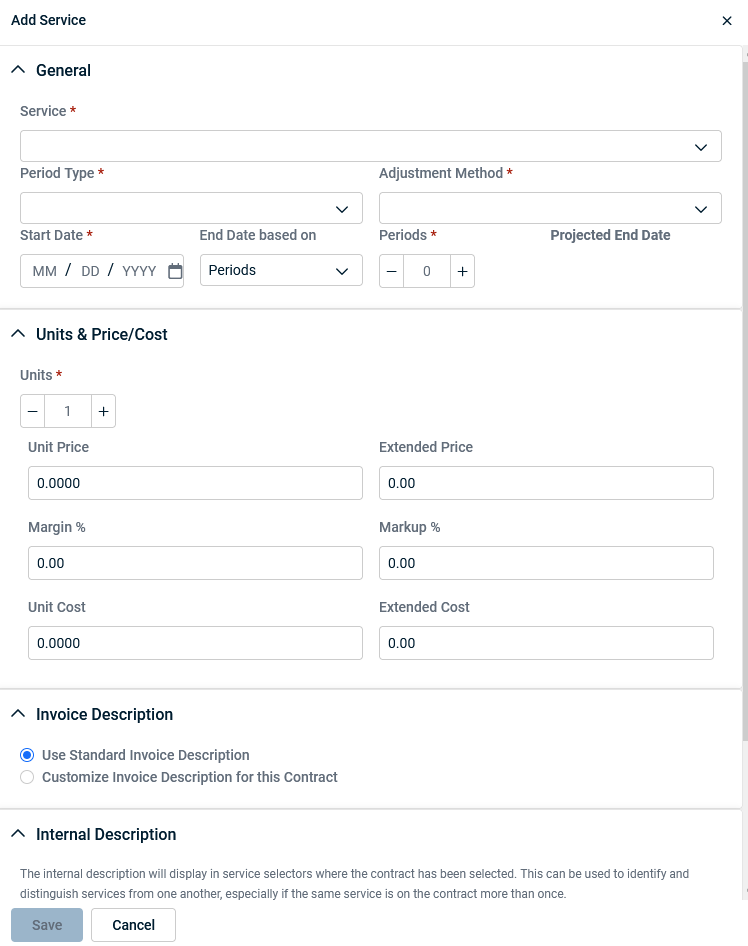
The Add Service pane opens.
-
Select the desired service from the service catalog.
-
Select Monthly, Quarterly, Semi-Annual, or Yearly for the Period Type.
-
Select Full period of Effective Date, Next full period, or Prorate by day for the Adjustment Method. The adjustment method determines how and when your service arrangement changes will impact billing and invoicing.
NOTE Full period of Effective Date means that the change takes effect for the entire current billing period that the effective date covers. Next full period means that the change is applied starting with the next full billing period after the effective date. Prorate by day means that the change is applied as of a specific date, and the system calculates a prorated amount for the remainder of the current period.
NOTE If the period is already posted or invoiced, a prorated adjustment is calculated for the next invoice.
-
Set the Start Date and define the End Date (either by period count or a specific date).
NOTE The Start Date and End Date can be independent of other services within the contract.
-
Set the Units (the quantity you want to add). The field may default to 1, but you can adjust as needed.
-
Adjust the price and cost per unit as necessary.
-
Select Use Standard Invoice Description or Customize Invoice Description for this Contract for the Invoice Description. Refer to Configuring the invoice body.
-
Add an Internal Description. This description can be used to identify and distinguish services from one another, especially if the same service is on the contract more than once. This description is optional.
-
Click Save to add the service arrangement to the contract.
Adjustment History
To view all changes that have been made to service arrangements within the umbrella contract, click Adjustment History.

This section provides a detailed log of every adjustment—such as changes to quantity, cost, price, or effective dates—so you can see exactly what was changed, when, and by whom.
To add a labor arrangement:
-
Click the New Arrangement button and then click New Labor Arrangement or from the Labor (Roles Rates) tab click New Arrangement.

-
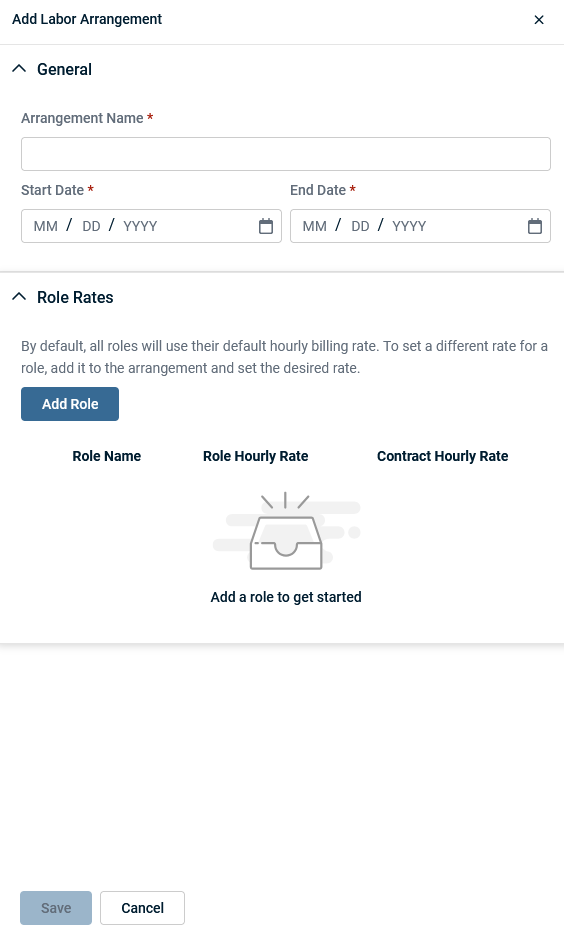
The Add Labor Arrangement pane opens.
-
Enter an Arrangement Name.
-
Set the Start Date and the End Date.
-
Click Add Role.
-
Select a role from the Role Name dropdown and enter the Contract Hourly Rate. Repeat steps 5 and 6 to add additional roles. To remove a role, click the
 icon .
 -
Click Save to add the labor arrangement to the contract.
Exclusions
The Exclusions section is used to define which roles, work types, or issues/sub-issues are not covered by the contract. Refer to Contract Exclusions.
Description
Any information obtained from the Description field will display here. Refer to Contract Description .
Activity
The Activity tab is the working area of the contract. You can view notes, attachments, and other associated items that have been added to the contract, and create new ones. Refer to The Activity tab for more information.
Click in the Add a note or attachment field to begin adding a new note or attachment. Click Submit once complete.

NOTE Rich text is supported.
Devices
The Devices section is designed to display and provide insights into all devices that are associated with the contract. This section helps you quickly see which devices—such as computers, servers, or network equipment—are covered under the umbrella contract’s arrangements. To add a new device to the contract, click New Device. Refer to Contract Devices for more information.

Click the  icon to refresh the tab.
Click the  icon to customize column visibility.
Tickets
The Tickets section is designed to display and manage all support tickets that are associated with the umbrella contract or any of its arrangements. This section provides a centralized view of every ticket—such as service requests, incidents, or issues—that falls under the coverage of the umbrella contract. To add a new ticket to the contract, click New Ticket. Refer to Adding, copying, and editing tickets for more information.

Click the icon to refresh the tab.
Click the icon to customize column visibility.
Toggle the  Show Completed icon to also show completed tickets covered by the contract.
Projects
The Projects section is designed to display and manage all projects that are associated with the umbrella contract or any of its arrangements. This section provides a centralized view of every project—such as implementations, migrations, or other service-related initiatives—that falls under the coverage of the umbrella contract. Refer to Adding a project with new content for more information.

Click the icon to refresh the tab.
Click the icon to customize column visibility.
Charges
The Charges section is designed to display and manage all financial charges associated with the contract. This includes any one-time or recurring costs, fees, or billable items that are not already covered by standard arrangements like services or labor. To add a new charge to the contract, click New Charge. Refer to Contract Charges for more information.

Click the icon to refresh the tab.
Click the icon to customize column visibility.
Attachments
The Attachments section is used to store, organize, and manage all files and documents related to the contract. This can include signed agreements, vendor contracts, supporting documentation, PDFs, and even URLs. Refer to Adding and managing attachments for more information.

NOTE Attachments added on the Activity tab will appear here.
Click the icon to refresh the tab.
Click the icon to customize column visibility.
Invoices
The Invoices section serves as a centralized location to view, track, and manage all invoices that are associated with the umbrella contract and any of its underlying contractual arrangement items ("line items" or "arrangements"). Its primary purpose is to provide comprehensive visibility into all billing activities related to the umbrella contract, regardless of which specific arrangement or service generated the invoice. Click an Invoice ID or Batch ID to view details of the invoice.

Click the icon to refresh the tab.
Click the icon to customize column visibility.
Contract details pane
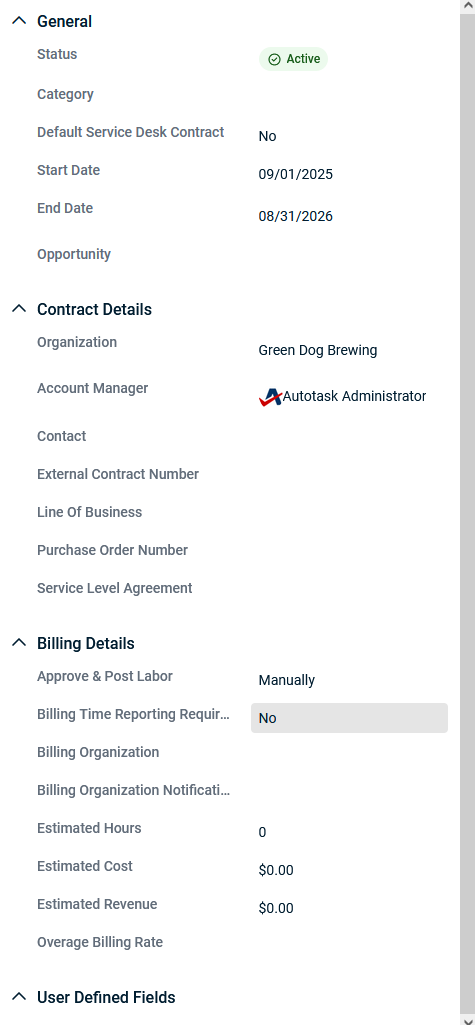
The contract details pane provides a quick, at-a-glance view of essential information about the contract.
For more information on how to create an umbrella contract, refer to Creating an umbrella contract.


