Creating an umbrella contract
 Security and navigation
PERMISSIONS Security level with access to Contracts
NAVIGATION Create > Contracts > Umbrella
NAVIGATION Left Navigation Menu > Contracts > Search > Contracts > New > Umbrella Contract
Overview
Umbrella contracts bring together different service and labor arrangements into one central contract. Service arrangements are defined and are used to manage recurring services with independent billing periods, adjustment rules, and start/end dates. Labor arrangements are used to define hourly role rates for specific time periods, either as standalone contracts or alongside services.
Key Benefits
-
Simplified Management: All your services and labor arrangements are consolidated into one contract, reducing paperwork and administrative overhead.
-
Clear Visibility: A single, intuitive view of all your contracted services, their terms, and any associated rules or conditions.
-
Flexible Arrangements: You can have different start and end dates for individual services, but everything is tracked and managed under the umbrella contract.
-
Streamlined Invoicing: Invoices can be generated based on the umbrella contract, making billing clearer and easier to reconcile.
-
Better Reporting: All activities, changes, and associated entities (like tickets, projects, or assets) are visible and reportable within the umbrella contract, giving you a complete picture.
General tab
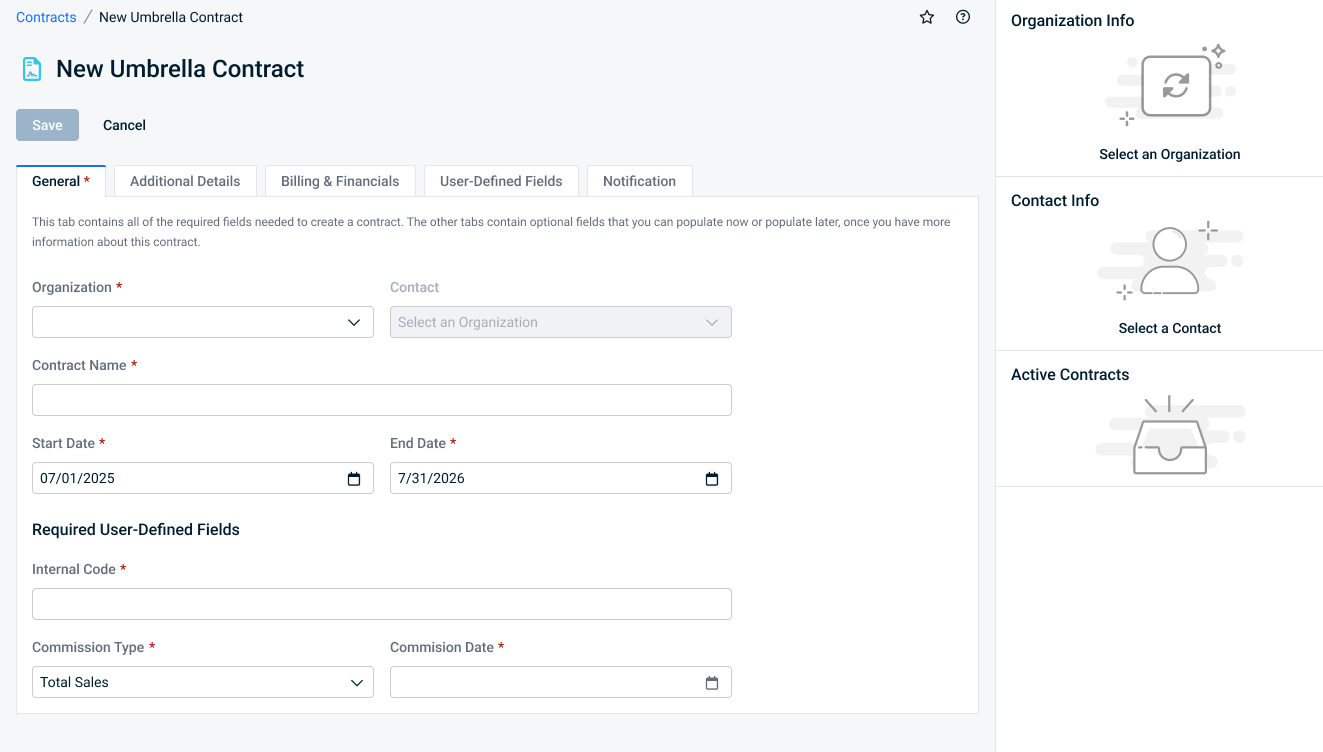
This tab lets you name the contract, link it to an organization and contact, set its start and end dates, and fill in any required custom fields. This tab must be complete before the contract can be saved.
| Field Name | Description |
|---|---|
| Contract Details | |
| Organization | Use the dropdown menu or begin typing the name of the organization in this field. The typeahead will suggest existing organizations from which you can select. Because contracts require a customer type organization, only customers appear in the selector. Once created, the contract cannot be transferred to another organization. |
| Contact |
Optionally, select an individual as the contact for this contract. The drop-down list contains active contacts associated with the selected organization.
|
| Contract Name |
Contract NameEnter a descriptive contract name. You may have multiple contracts set up for a customer, and the name should make it easy to select the right contract. |
| Start Date |
Start DateEnter the first day of the date range when the entity is active or valid. It will default to the first day of the following month but can be modified. Contracts The start date of the contract becomes the billing date for all items billed under the contract. EXAMPLE If the Start Date is the 21st of the month, billing for all contract billing items will recur on the 21st. If you want your billing date to fall on the beginning or end of the month, but pro-rate services for the remainder of the current month, refer to Billing for a partial first month. NOTE If the Start Date is on a date not in the current period (for example, the start date is on the 31st and the next month only has 30 days), the last day of the month will be used for the billing event. Opportunities Start date is used to calculate the number of days the opportunity is in the pipeline. Projects The start date for all phases, tasks, and issues must be >= Start Date. Billing Rules The start date is the start of the first billing period and the first billing date. It also sets the schedule for all following billing dates. It must be greater than or equal to the contract start date. EXAMPLE If the start date is January 3, the next billing date will be February 3. If you enter a date of day #29, 30, or 31, and a month does not have that many days, the start date of that period will be the last day of the month. If you enter a day that is the last day of that month, we will use the last day of every month following that month. Each period's charge is created using the most recent unit count, which is established by the date entered into the Determine Units/Create Charges on: field. The count date can be the same date as the billing date, or an earlier date. If there is no unit count on the start date of the first billing period (because the day number selected to determine the unit count is greater than the day number of the start date), Autotask will do a unit count when the rule gets created to use for that first billing period. |
| End Date | Enter the end date of the contract, which should be the last day of a billing period. It will default to the last day of the preceding month of the following year. If the end date is not the planned last day of a billing period (you have a partial last month), the charge for the last billing period will be prorated.
|
Additional Details tab
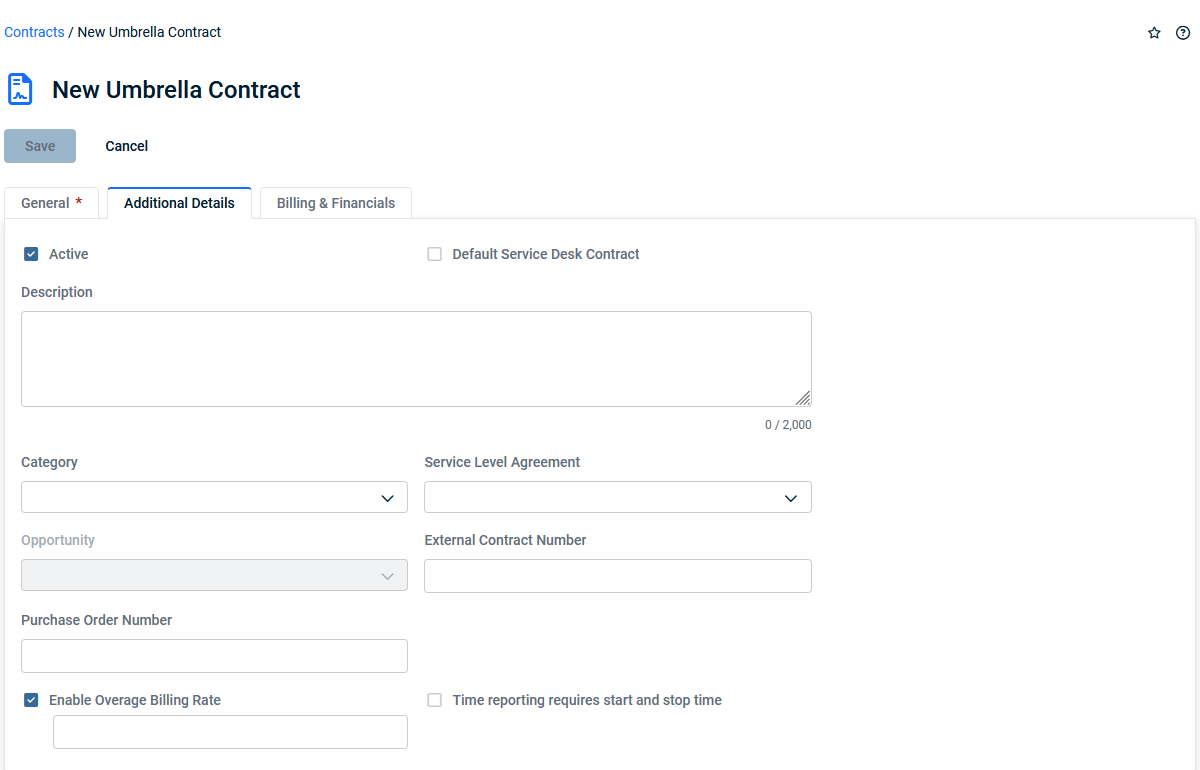
This tab lets you add additional information that the new contract will display.
| Field Name | Description |
|---|---|
| Contract Details | |
|
Active |
Contract StatusThe contract status determines whether a contract is active.
IMPORTANT To stop billing for future services, you must change the contract's end date to the date of the last billing event. |
| Default Service Desk Contract (check box) |
Default Service Desk ContractEvery customer can have a designated default contract that will automatically apply to all tickets created for the organization within the contract date range. Refer to Automatically assigning a contract.
Select the check box to make this contract the default. If the organization already has a default contract with an overlapping time frame, click OK to make the new contract the default, or click Cancel. The new contract will become the default for all new tickets. |
| Contract Description |
DescriptionThe Description field appears on many Autotask entities. On entities like ticket, task, note, and to-do, the Description field is a core part of the data record. Wherever it is available, it tracks essential information about the record. This field is often prefaced with the entity name. For example, Quote Description. Enter a detailed description of the entity instance, the issue with which the customer needs help, or the service that they requested. |
| Contract Category |
Contract CategoryContract categories are completely customizable, and their use is optional. They are used for displaying, filtering, and grouping in LiveReports, and filtering on the Items to Invoice page. Refer to Contract categories. |
| Service Level Agreement |
Click the dropdown control and select a service level agreement (SLA). The selected SLA will be the default for all projects and tickets associated with the contract. For more information on SLAs, refer to Introduction to service level management and Applying service level agreements. NOTE You can edit an individual ticket if you do not want to apply the contract SLA to that ticket. NOTE The SLA will not be applied to tickets created under the contract before the SLA was added to the contract. |
|
Opportunity |
OpportunityAn opportunity is a potential sale you have identified. This field appears on entities that are associated with a sales opportunity. Depending on permissions, the opportunity name or a link to the opportunity is displayed. Select an opportunity or click the plus icon to add a new opportunity. You must select an organization first. All active opportunities associated with an organization are available. CRM notes and To-Dos:
CRM notes and to-dos created from the organization or contact entity can optionally reference an active opportunity for the organization. When you add a note from the Opportunity page, the Opportunity Name field is defaulted in. Contracts: If the contract is created while running the Won Opportunity or the Won Quote wizards, the opportunity is referenced here. Projects: You can associate an opportunity with the project and do the following:
Quotes:
Select an active opportunity, create a new opportunity, or allow the opportunity to be automatically created. If the opportunity is created automatically, it will have the same name as the quote, and the remaining fields will default to the values described in Default values for auto-created opportunities. Sales orders:
If Procurement is enabled, sales orders are automatically generated from opportunities when the Won Opportunity wizard is run. The field is read-only. Tickets:
An opportunity will appear in this field if the Won Opportunity wizard was run and Associate this ticket with this opportunity was selected, creating this ticket in the Post Sale queue. |
| External Contract Number |
External NumberThis field is optional and can be edited. It is available on multiple entities and can provide a cross-reference to an external numbering system. |
| Purchase Order Number |
Purchase Order NumberThis field appears on entities that are part of the billing workflow, and is applied to labor and charges.
Refer to Working with purchase order (PO) numbers. |
|
Enable Overage Billing (check box) |
Enable Overage BillingSelect this check box to enable the Overage Billing Rate field. |
Overage Billing RateOn Umbrella contracts, this hourly rate will be used when all available block hours have been consumed. If enabled, this field is required and will always create a contract charge of 0.00, or the amount entered. NOTE If you would like to cap charges for a block period, enter an overage rate of 0.00 . Once the block hours are consumed, labor will be performed at the 0.00 overage rate. |
|
| Time reporting requires start and stop time |
Select the check box to change the time entry method for projects that use this contract from decimal time (flat number of hours) to Start/Stop time entry.
|
Billing & Financials tab
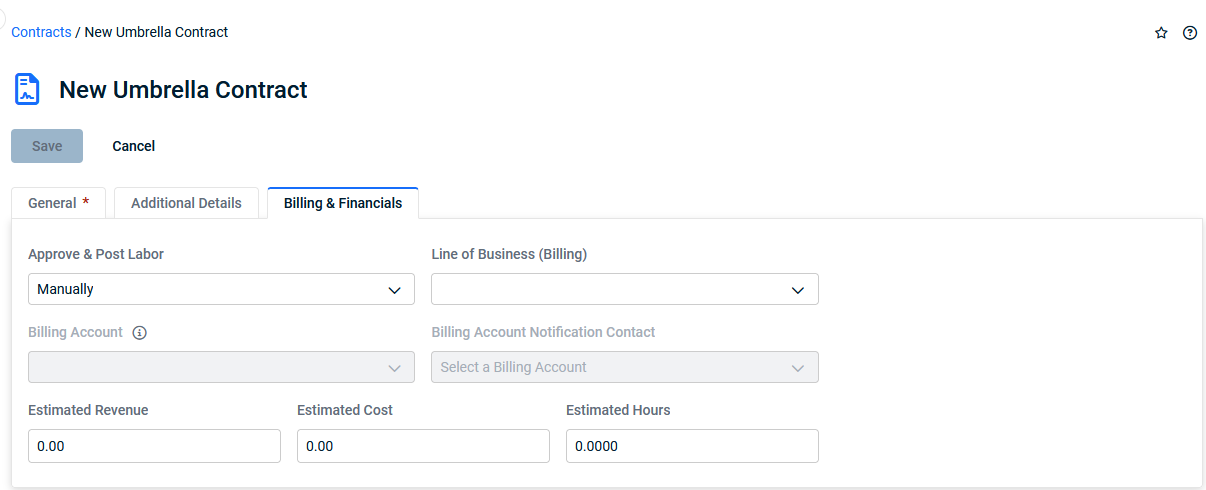
This tab allows you to specify the revenue you expect the contract to generate and configure settings for approving and posting labor.
| Field Name | Description |
|---|---|
| Contract Details | |
| Approve & Post Labor |
Approve and Post LaborThis field determines whether you approve and post labor manually, on timesheet approval, or immediately on time entry. NOTE Only the Manually option will allow you to go through a separate billing approval stage for labor, correct mistakes, make adjustments, add missing information, correct spelling, etc. We therefore strongly recommend that customers use the Manually option. Refer to Billing settings for approving labor. |
| Line of Business (Billing) |
Line of BusinessLine of Business lets you classify finances and segment data. This field is displayed when Organizational Structure (Line of Business) is activated and enabled. It is available on the following entities: Contract, Opportunity, Sales Order, Project, and Ticket. Refer to Introduction to Line of Business. If a contract is associated with a different line of business than the ticket or project, billing items always inherit the line of business from the contract, not the parent entity. Refer to Line of business inheritance rules for dependent entities. Select a pairing of Business Division > Line of Business. |
| Billing Organization |
Billing OrganizationIf you would like to send the invoice for billing items generated by this contract to be sent to a third party other than the parent organization for this customer, select it here. Any organization in your Autotask instance can be selected. Revenue and costs are tracked against the organization the contract is set up for, but all approved and posted items for the contract will be invoiced to the billing organization. |
| Billing Organization Notification Contact |
Billing Organization Notification ContactThis role-based notification recipient at the Billing Organization is an individual who can receive workflow rule notifications.. |
|
Estimated Revenue |
Estimated RevenueThe amount of revenue you expect to generate. We strongly recommend that you populate this field, because many reports compare estimated revenue, actual revenue and costs. If you leave this field set to 0.00, these reports will not generate useful information. |
|
Estimated Cost |
Estimated CostThe amount you expect the contract work or project charges to cost. If you do not have permission to view internal cost data, this field is not visible. |
|
Estimated Hours |
Estimated HoursThe number of hours you estimate it will take to complete the work. Project Tasks: Estimated (h) and another field, Per Resource (h), are interdependent.
NOTE Estimated hours on tickets and tasks populate the Workload Availability report. Phases: The total estimated hours specified for all tasks in the phase. |
User-Defined Fields tab
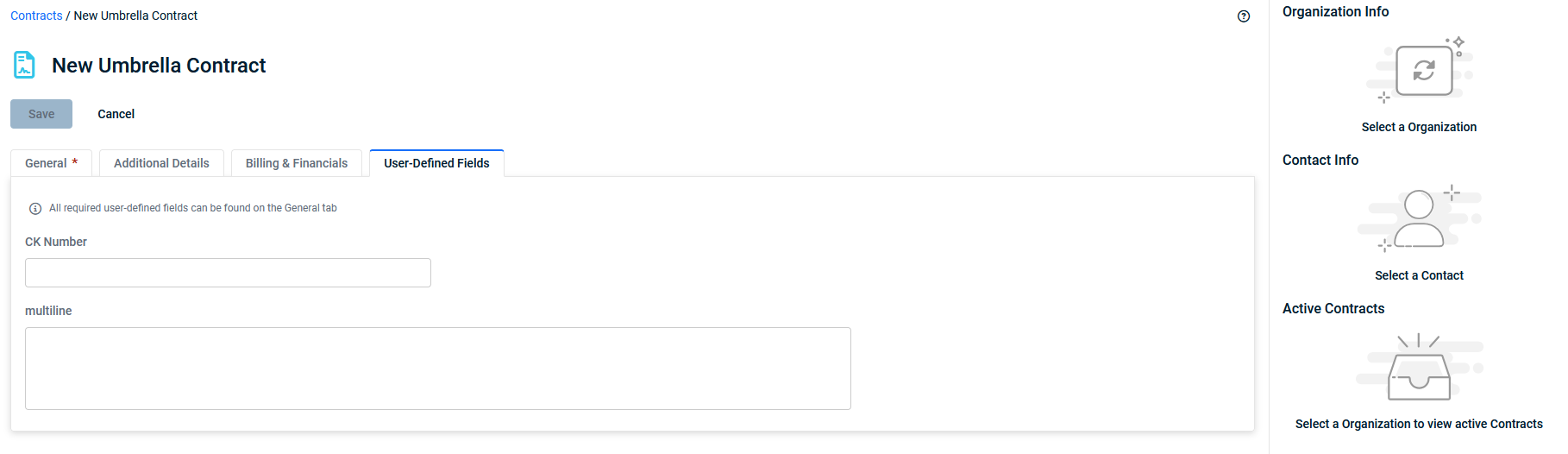
This tab allows you to display and manage custom fields that have been created by your organization to capture additional information not covered by standard contract fields. labor.
| Field Name | Description |
|---|---|
| Contract Details | |
|
User-Defined Fields |
If your Autotask instance has one or more contract user-defined fields, the wizard displays those UDFs below the User-Defined Fields section. NOTE All required user-defined fields can be found on the General tab. User-defined FieldsUser-defined fields (UDFs) are custom fields set up by your Autotask Administrator that capture information that is unique to your business. They can be one of the following field types:
You are able to see and update this information based on your security permissions. If you do not have permission to view or update the data, it will be masked with asterisks. If you can view but not edit the data, editing will be disabled. Refer to Viewing protected data. Also review Managing user-defined fields. You must complete any required UDFs before you can save the entity. |
For adding service and/or labor arrangements to an umbrella contract, refer to Adding service and labor arrangements to an umbrella contract.


